
Adding a new user to your practice
How to give a colleague their own access to Dental Audit, and what each of the three roles can do.
Every practice has one Owner — the account that manages billing and has full access — plus as many Coordinators and Auditors as you need. Adding someone new takes one form: their email, an optional display name, and a role.
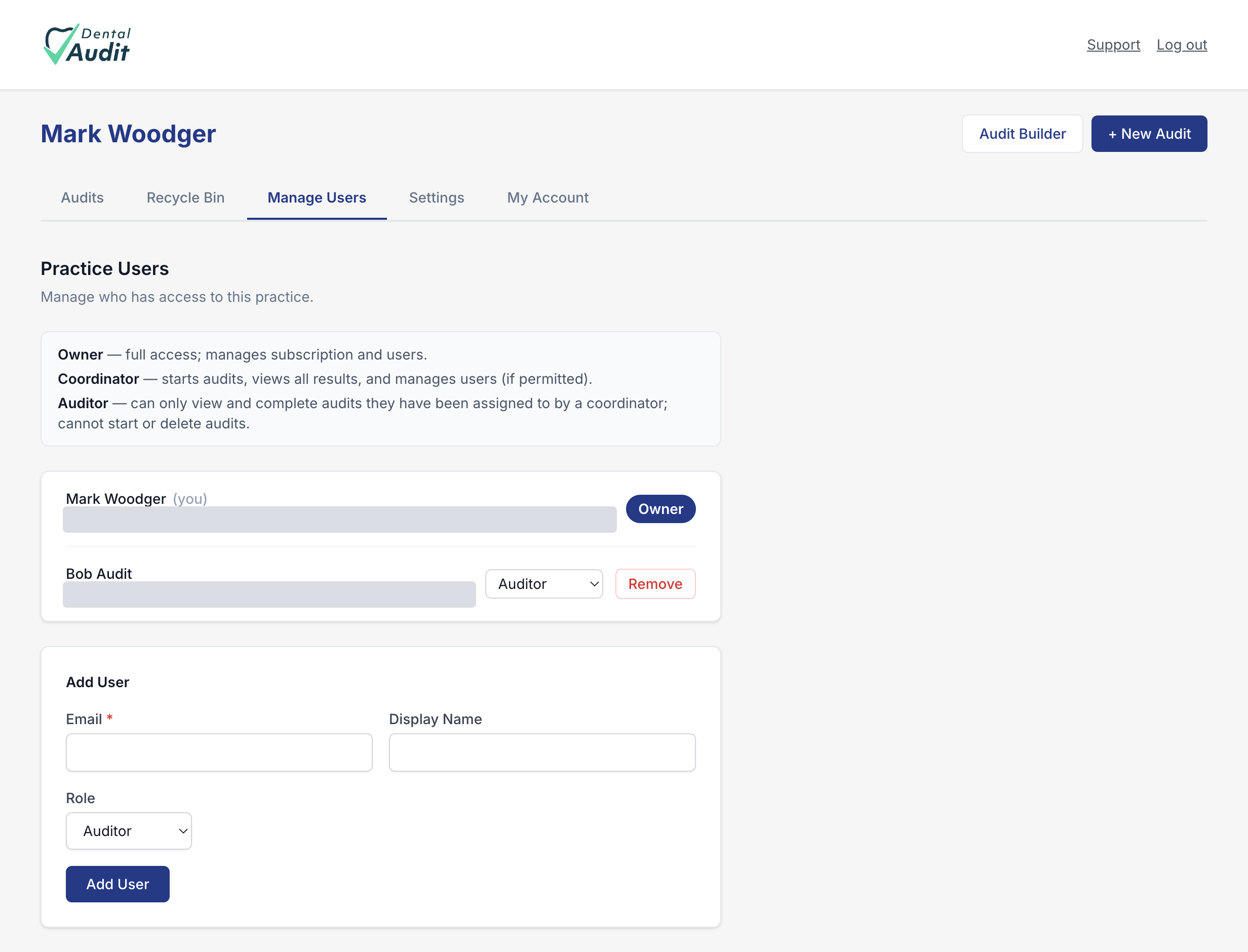
Coordinator — starts audits, views all results, and manages users (if permitted).
Auditor — can only view and complete audits they have been assigned to by a coordinator; cannot start or delete audits.
Open Manage Users
From the dashboard, click Manage Users in the top navigation. This screen lists everyone with access to the practice — you'll see yourself listed as Owner — with the Add User form beneath it.
Fill in their details
Email is the only required field — this is what they'll use to access the practice. Display Name is optional and controls how they appear in audit records and assignments. Role defaults to Auditor; change it to Coordinator if they need to start audits and manage other users.
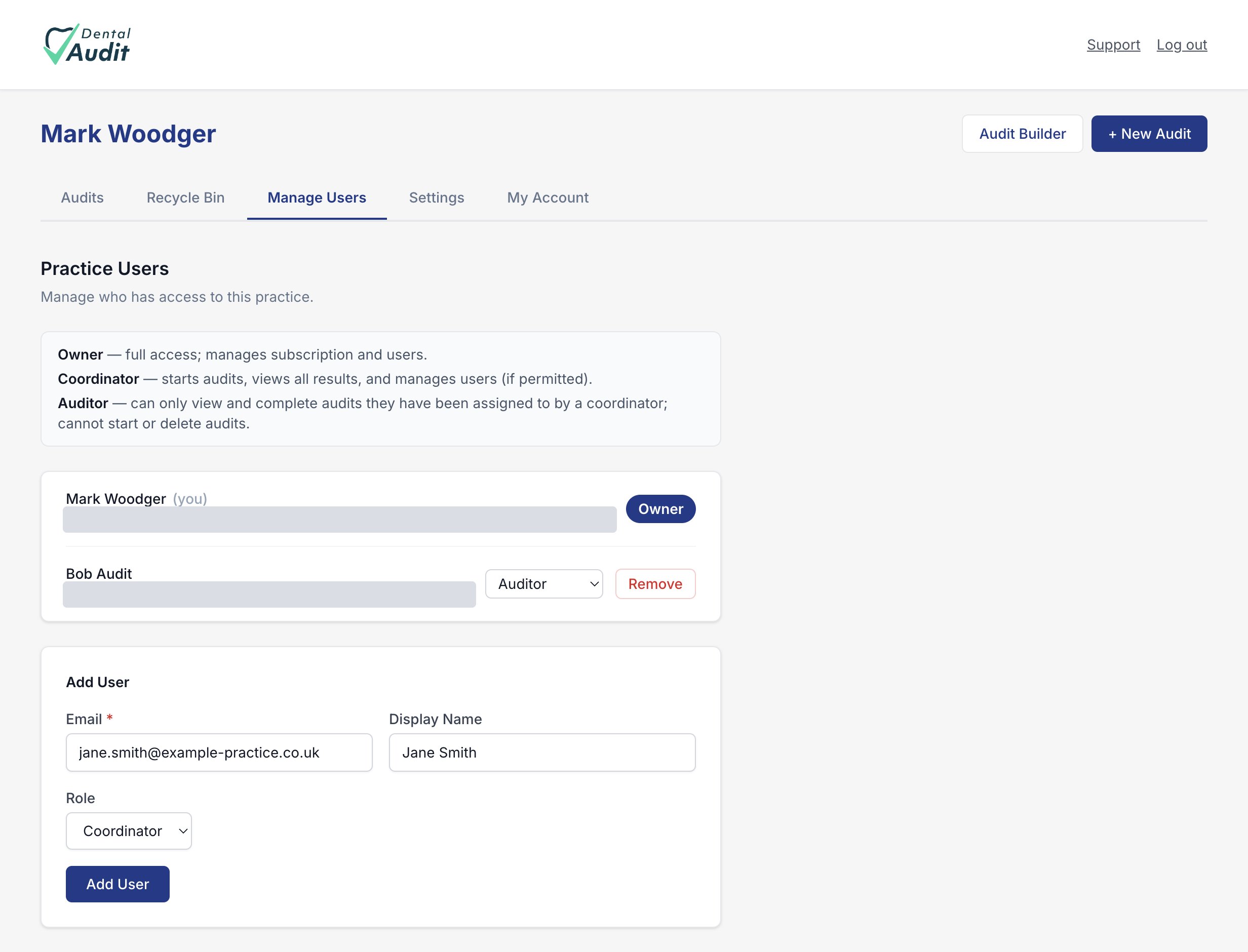
Click Add User
Submitting the form adds them to the practice user list you saw in step 1, with the role you chose. You can return to Manage Users at any time to check who has access or add further team members — there's no limit on how many Coordinators or Auditors a practice can have.
Only the Owner, or a Coordinator with permission to manage users, will see the Add User form.
Recap
- Manage Users → lists everyone with access and holds the Add User form.
- Email is required; Display Name and Role are optional (Role defaults to Auditor).
- Auditor completes assigned audits only; Coordinator can start audits and manage users; Owner has full access.