
Dental Audit — Help Guide
Updating your name and password
Both live in one place — My Account — as two short, separate forms.
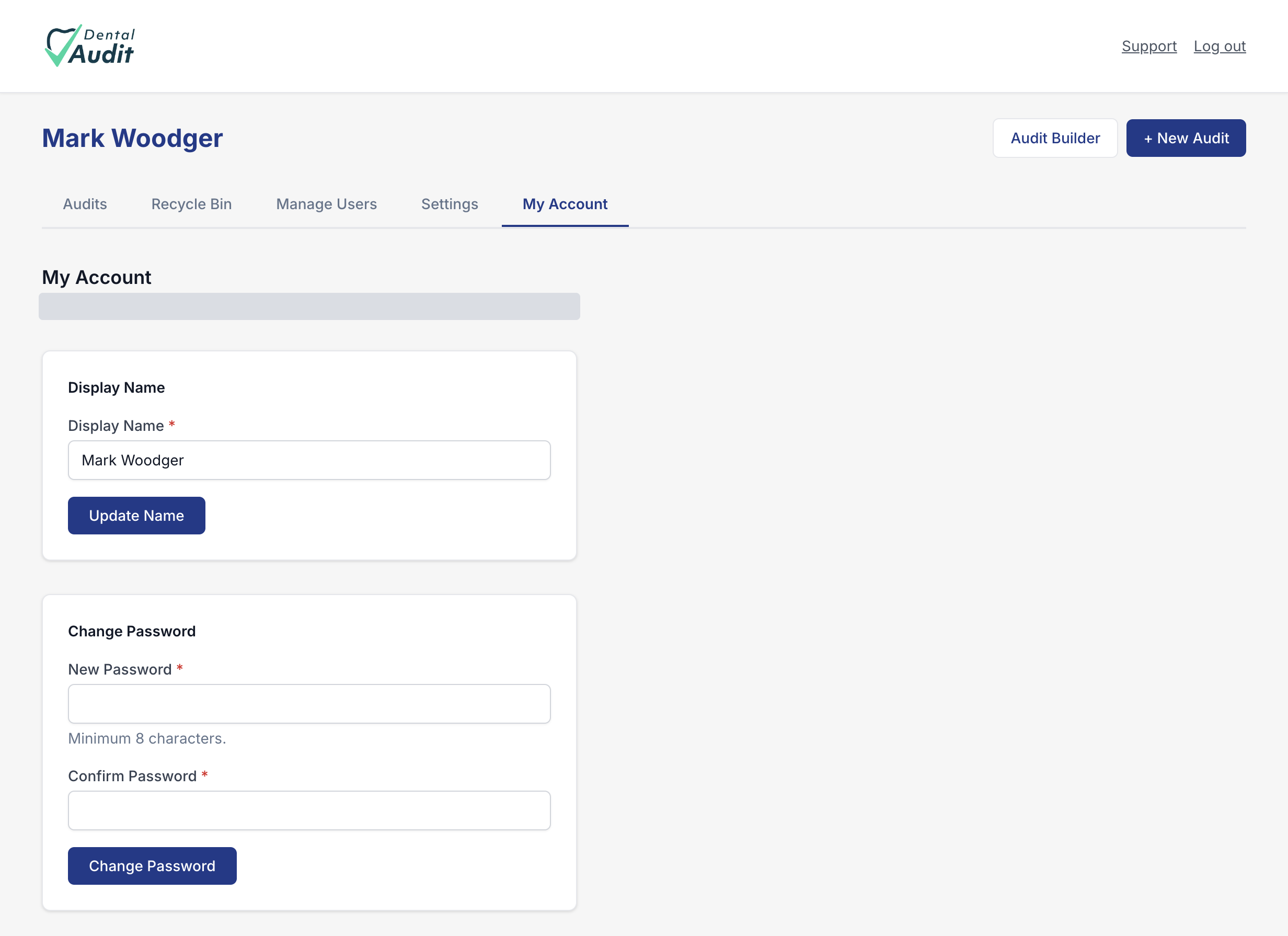
Click My Account in the top navigation to get here. It shows your login email at the top, then two separate cards — one for your display name, one for your password.
1
Update your display name
Edit the Display Name field and click Update Name. This is the name shown against you elsewhere in the app — for example, as the auditor on an episode of care, or in the practice user list under Manage Users.
2
Change your password
Enter a New Password — minimum 8 characters — and repeat it in Confirm Password, then click Change Password. Your login email can't be changed from this screen.
Recap
- My Account holds two independent forms: Display Name and Change Password.
- Display Name updates how you appear elsewhere in the app; your login email isn't editable here.
- New passwords need a minimum of 8 characters and must be entered twice to confirm.