
Using the Audit Builder
Customise any existing audit or design a completely new one, with no technical skill needed. A Premium feature.
Every practice is a little different. The Audit Builder lets you take any built-in audit and adjust it to match how your practice actually works, or start completely from scratch and design your own — sections, questions and scoring, all without writing a line of code.
Open the Audit Builder
Click Audit Builder next to + New Audit on your dashboard. This is your library of custom audits — each one shows its slug, type, status, section count, and actions to Edit, Activate/Deactivate, Export or Delete it. An audit only becomes visible to auditors once it's Active.
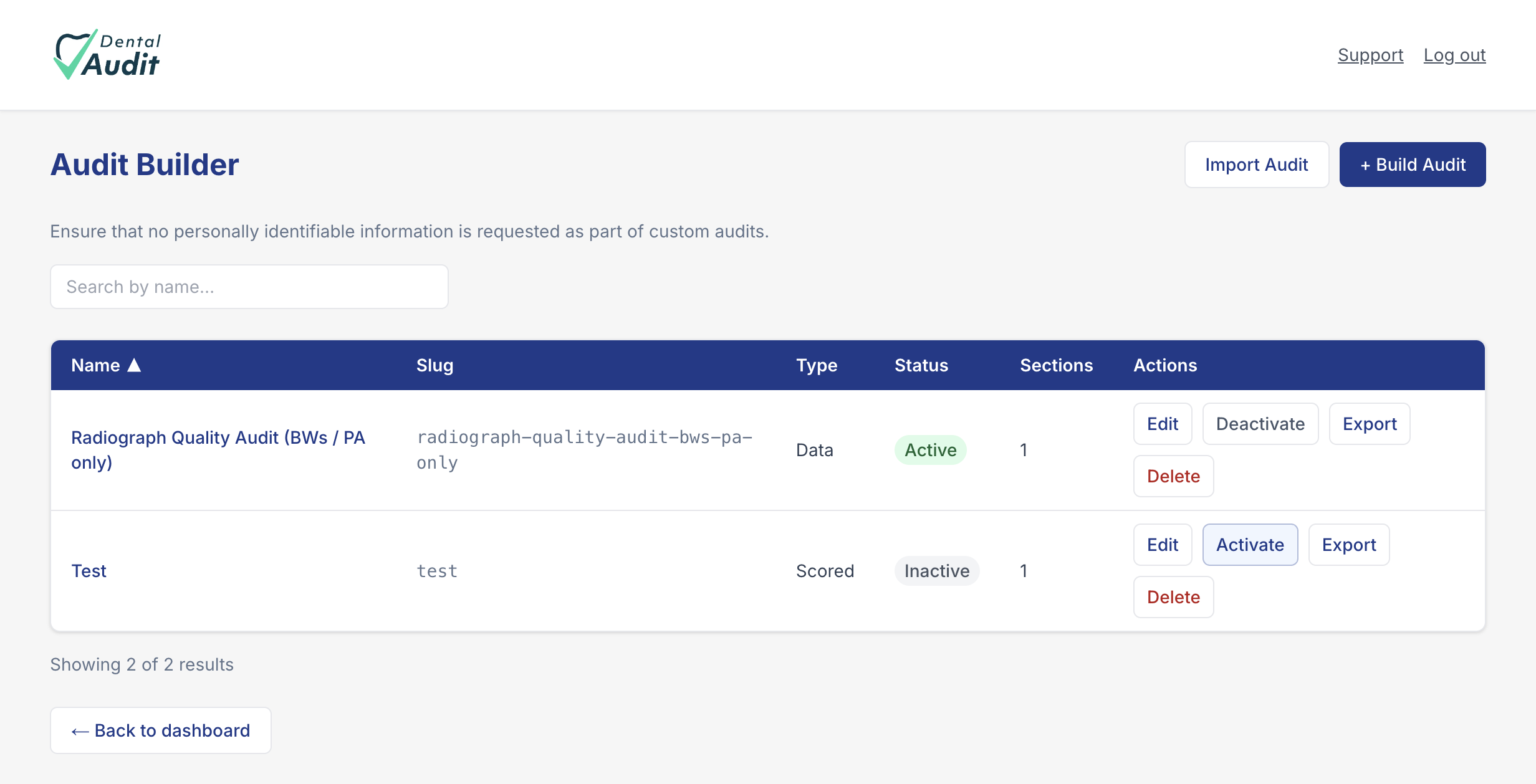
Choose your starting point
Click + Build Audit and you're offered two routes: + Start blank for a completely new audit, or search "or start from an existing audit" to pick any built-in audit as your template — everything about it becomes a fully editable copy.
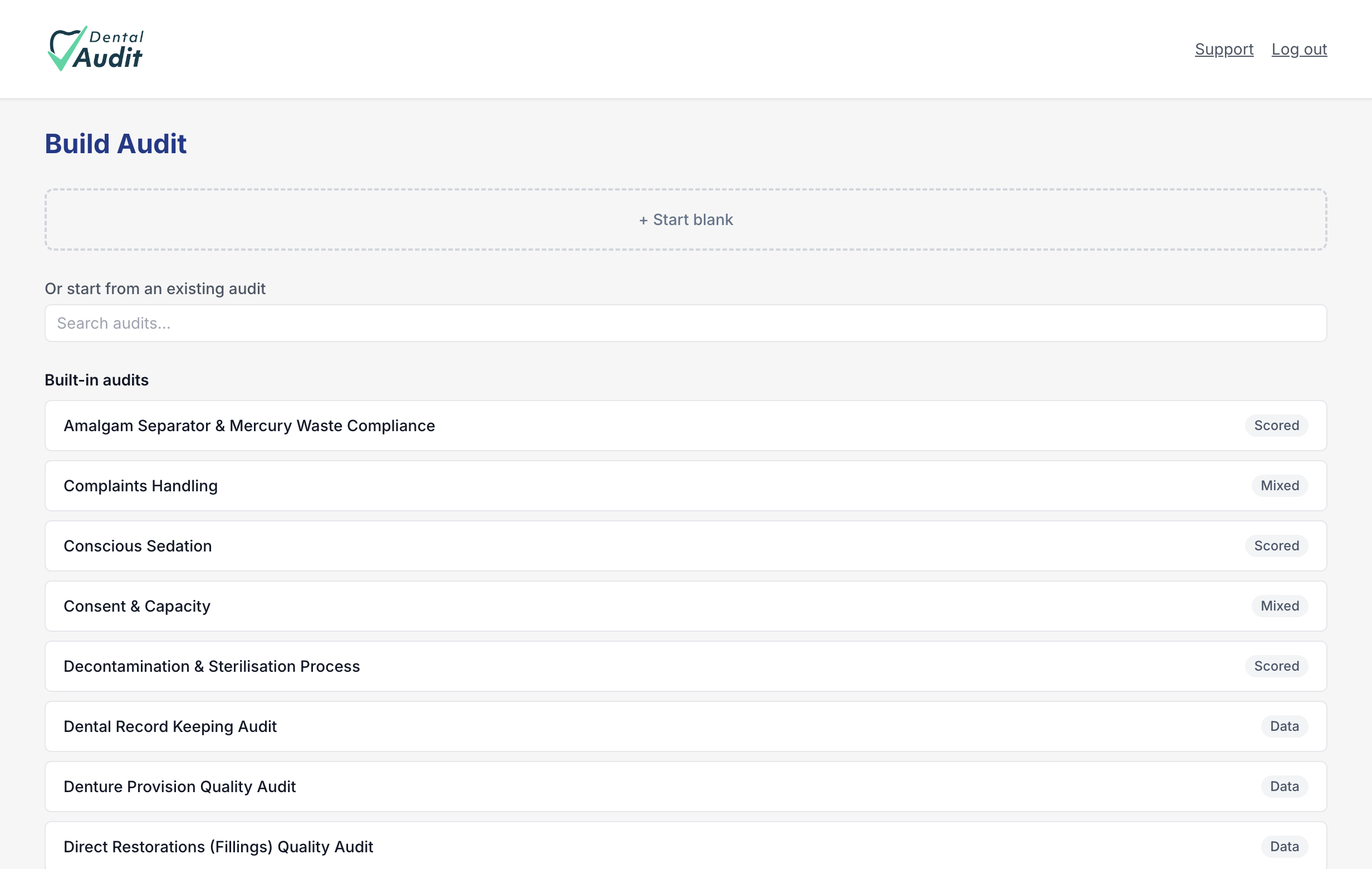
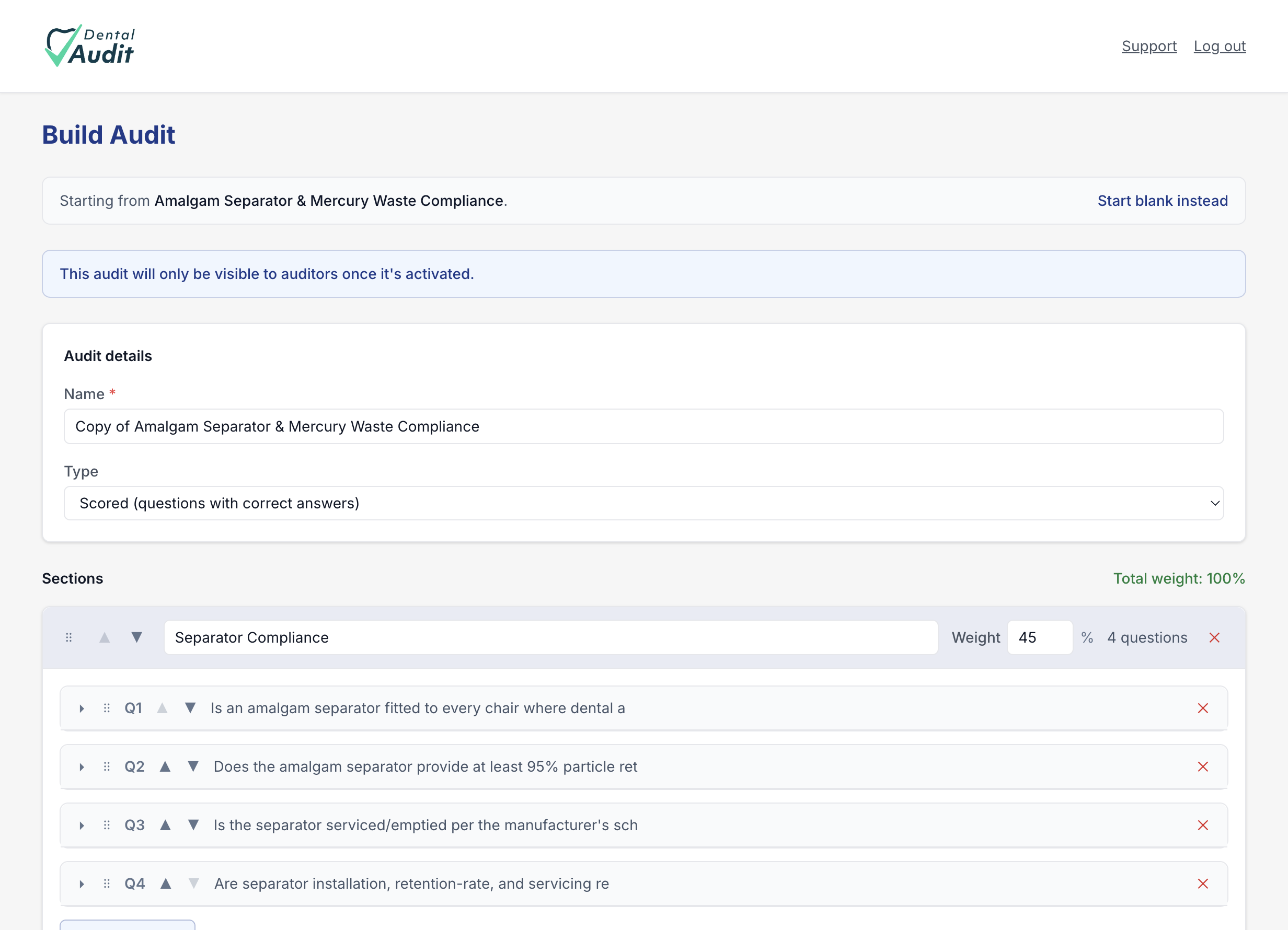
Customising an existing audit
Pick a built-in audit and the builder opens with a "Starting from…" banner, the name pre-filled as "Copy of [audit name]", and every section and question already in place — ready to rename, edit, reorder, remove or add to. Nothing changes on the original built-in audit; you're working on your own independent copy.
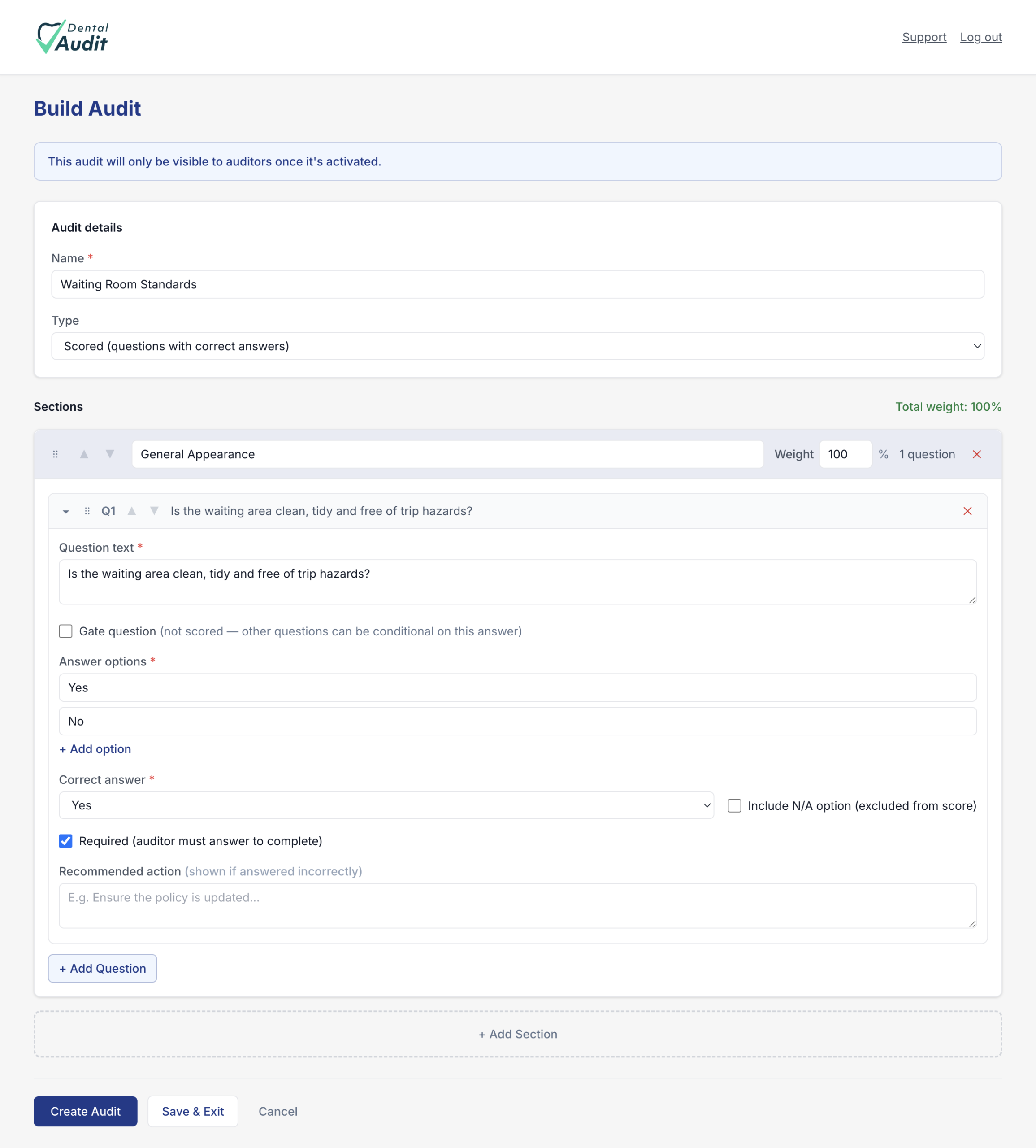
Building sections and questions
Whichever route you took, the editor works the same way. Give the audit a Name and a Type — Scored, Data, or Mixed — then use + Add Section and + Add Question to build it up. Drag the handle on any section or question to reorder it, or use the up/down arrows. Each section carries a Weight that must add up to 100% across the audit, shown live as you go.
For a Scored question, set the Answer options, mark the Correct answer, and optionally add a Recommended action that's shown automatically if it's answered incorrectly. A question can be marked Required, given an N/A option excluded from scoring, or set as a Gate question — unscored, but usable to make other questions conditional on its answer.
Editing an audit later
Return to Audit Builder any time and click Edit on an audit you've already built. Everything — sections, questions, weights — opens exactly as you left it, ready to adjust. A Data-type audit shows fields instead of scored questions, each with its own field type (select, radio, checkboxes and more) plus Row label, Min and Max settings controlling how many repeatable entries — like episodes of care — an auditor can log.
Save, activate, and go live
Save & Exit keeps your work without publishing it. Create Audit (or, when editing, saving your changes) stores it, but it still won't appear to auditors until you switch it to Active from the Audit Builder list — Deactivate hides it again without deleting anything. Export downloads the audit definition to reuse or back up.
Recap
- Audit Builder (next to + New Audit) lists and manages every custom audit.
- + Build Audit → Start blank for a new audit, or pick a built-in one to customise a copy of it.
- Sections have a Weight (must total 100%); questions have answer options, a correct answer, and optional gating.
- An audit stays hidden from auditors until you set it to Active.